2019年11月24日日曜日

Blenderのオブジェクト配置をUnityに(JSON)

Unityのアセットの配置をCSVで読み書きで単純な位置情報をCSVでやりとりしましたが
拡張性も足りなく、階層構造もないため実運用では少し物足りない感じになりました
そのまま適当に拡張してもよかったのですが、
改めて機能を整理したものを作成したので記事として残しておきます。
対応したかったものとして

  1. 階層構造でオブジェクトの管理をしやすく
  2. カメラやライトの設定も対応できるよう拡張性を持たせる
  3. (Unity側)アセットもフォルダで階層化した中身から取得したい

といった機能がありました
1 2のため、Unityの読み込み機能を使ったJSONで行うことにしました。
まずとりあえす Blender側のPyhtonです
前回と同じくUnity側にはBlenderで配置たオブジェクトと同名のアセットがあるのを前提にしています。
import bpy
from mathutils import Vector, Euler, Matrix, Quaternion
#''の間にCSVを書き出すパスを記述

file_path = r'C:\Users\user\Documents\test\AssetTest\Assets\AssetTest3.txt'

#座標軸を変換するためのマトリクス
convert_matrix = Matrix([[1,0,0,0],[0,0,1,0],[0,1,0,0],[0,0,0,1]])

class objectInfo:
    def __init__(self):
        self.name = ""
        self.id = 0
        self.parent = 0
        self.type = ""
        self.position = {"x":0,"y":0,"z":0}
        self.rotation = {"x":0,"y":0,"z":0,"w":1}
        self.scale = {"x":1,"y":1,"z":1}
        self.datastring = ""
        self.bound_min = ""
        self.bound_max = ""
        self.childlist = []
    def __str__(self):
        return str(self.__dict__)
    def set_Info_name(self, obj_name):
        Info.name = obj_name.split(".")[0]
    def set_Info_mat(self, matrix_world, matrix_local):
        #座標軸の回転
        mat_w = convert_matrix @ matrix_world @ convert_matrix
        pos = ["{0:.6f}".format(f) for f in mat_w.translation]
        rot = ["{0:.6f}".format(f) for f in mat_w.to_quaternion()]
        siz = ["{0:.6f}".format(f) for f in matrix_local.to_scale()]
        self.position = {"x":pos[0],"y":pos[1],"z":pos[2]}
        self.rotation = {"w":rot[0],"x":rot[1],"y":rot[2],"z":rot[3]}
        self.scale = {"x":siz[0],"y":siz[2],"z":siz[1]}
    def to_json(self):
        #Unityに読ませるためにシングルクォーテーションをダブルクオーテーションに
        dict = str(self.__dict__)
        return (dict.replace("'",'"')) #"

#親になるオブジェクト
root = objectInfo()
#シーン名を親オブジェクト名として使用
root.name = bpy.context.scene.name
info_list = [root.to_json()]
#シーン内にあるオブジェクトを取得
objects = list(bpy.context.scene.objects)
for obj in objects:
    if obj.type == 'MESH':
        Info = objectInfo()
        Info.type = "MESH"
    elif obj.type == 'EMPTY':
        Info = objectInfo()
        Info.type = ""
    else : continue
    Info.set_Info_name(obj.name)
    #オブジェクトのidを取得
    Info.id = objects.index(obj) +1
    #親のidを取得
    if obj.parent == None:
        Info.parent = 0
    else:
        Info.parent = objects.index(obj.parent) +1
    #オブジェクトの情報から移動回転拡縮の情報を取得
    Info.set_Info_mat(obj.matrix_world, obj.matrix_local)
    info_list.append( Info.to_json() )
#書き出し
with open(file_path, "w") as f:
    f.write('\n'.join(info_list))
スクリプトの先頭に書かれたファイルパスにテキストファイルが書き出されます

続いてUnity側の読み込みスクリプト
using UnityEngine;
using UnityEditor;
using System;
using System.Collections.Generic;
using System.IO;
public class CreatePrefabsJSON : MonoBehaviour
{
    // 読み込むファイルのAssetsより下のパス
    public string filePath = "/AssetTest3.txt";
    //plefabDirectryの末尾の/は不要
    public string plefabDirectry = "/Resources";
    void Start()
    {
        //Application.dataPathはプロジェクトデータのAssetフォルダまでのパス
        string path = Application.dataPath + filePath;
        objectInfo[] InfoList = looadJSON(path);
        //情報を元にオブジェクトの配置
        GameObject obj =  createPrefab(InfoList);
    }

    public GameObject createPrefab(objectInfo[] InfoList)
    {
        //親になるオブジェクトの作成
        string objName = InfoList[0].name;
        GameObject rootObj = new GameObject(objName);
        Dictionary objDic = LoadAssetPath(plefabDirectry);

        GameObject[] objects = new GameObject[InfoList.Length];
        objects[0] = rootObj;
        //テキスト情報を元にオブジェクトを配置
        for (int i = 1; i < InfoList.Length; i++)
        {
            objectInfo Info = InfoList[i];
            //オブジェクトのタイプがMESHになっているもののprefabを検索
            if (Info.type == "MESH" && objDic.ContainsKey(Info.name))
            {
                GameObject obj = (GameObject)PrefabUtility.InstantiatePrefab(objDic[Info.name]);
                obj.transform.localScale = Info.scale;
                obj.transform.position = Info.position;
                obj.transform.rotation = Info.rotation;
                objects[Info.id] = obj;
            }
            else
            {
                GameObject obj = new GameObject(Info.name);
                obj.transform.localScale = Info.scale;
                obj.transform.position = Info.position;
                obj.transform.rotation = Info.rotation;
                objects[Info.id] = obj;
            }   
        }
        //親子関係の設定
        for (int i = 1; i < InfoList.Length; i++)
        {
            GameObject obj = objects[i];
            GameObject parent = objects[InfoList[i].parent];
            obj.transform.parent = parent.transform;
            //Debug.Log(parent.name + ":"+ obj.name) ;
        }
        return (rootObj);
    }
    objectInfo[] looadJSON(string path)
    {
        List InfoList = new List();
        using (StreamReader reader = new StreamReader(path))
        {
            while (reader.Peek() >= 0)
            {
                objectInfo line = JsonUtility.FromJson(reader.ReadLine()); // 一行ずつ変換
                InfoList.Add(line);
            }
            reader.Close();
            return InfoList.ToArray();
        }
    }
    public Dictionary LoadAssetPath(string serch_path = "/Resources")
    {
        //指定パス以下のGameObjectを取得してオブジェクト名の辞書で返す
        //エディッタのみで使用可能 (using UnityEditor;)
        //パスの記述をそろえるため
        serch_path = "Assets" + serch_path;
        //オブジェクト情報を収める辞書
        var objDic = new Dictionary();
        //条件に合うアセットの検索
        string[] guid_list = AssetDatabase.FindAssets("t:GameObject", new string[] { serch_path });
        for (int i = 0; i < guid_list.Length; i++)
        {
            //GUIDからパスの取得
            string assetPath = AssetDatabase.GUIDToAssetPath(guid_list[i]);
            GameObject obj = AssetDatabase.LoadAssetAtPath(assetPath);
            objDic.Add(obj.name, obj);
        }
        return objDic;
    }

    [System.Serializable]
    public struct objectInfo
    {
        public string name;
        public int id;
        public int parent;
        public string type;
        public Vector3 position;
        public Quaternion rotation;
        public Vector3 scale;
        public String datastring;
        public Vector3 bound_min;
        public Vector3 bound_max;
        public int[] childlist;
    }
}

書き出したテキストファイルをプロジェクトのAssetsフォルダ以下に置き
適当なシーンでスクリプトをGameObjectにアサインして
インスペクタで読み込むファイルのパスを指定してPlayモードに入るとシーンにオブジェクトが配置されるかと思います

インスペクタ上で指定するファイルパスはプロジェクトのAssetsから下のパスになります
冒頭に書いたように アセットは指定したフォルダの下のフォルダ内のものも全て名前で取得するようにしました
(デフォルトではResourcesフォルダの下のデータを取得するようにしています)
記事中のものでは位置情報のみですが他の情報を読み込む拡張ができるようにしています
最後にテストに使ったUnity側からPrefabのデータをJSONで書き出すスクリプトを置いておきます
using UnityEngine;
using UnityEditor;
using System;
using System.IO;

public class ActiveInfoJSON : MonoBehaviour
{
    public string filePath = "/saveJS.txt";
    // Start is called before the first frame update
    void Start()
    {
        //inspectorの表示されているオブジェクト1つを取得
        GameObject activeObj = (GameObject)Selection.activeObject;
        int object_id = 0;
        //取得したオブジェクト情報を収めるためのリスト
        objectInfo[] InfoList = new objectInfo[1];
        //ルートのオブジェクトの情報を取得
        var rootInfo = getInfo(activeObj);
        rootInfo.id = object_id;
        //子の情報を再帰的に取得
        int[] child_list = getChild(activeObj, ref InfoList,ref object_id);
        rootInfo.childlist = child_list;
        InfoList[0] = rootInfo;

        //Application.dataPathはプロジェクトデータのAssetフォルダまでのパス
        string path = Application.dataPath + filePath;
        saveJSON(path, InfoList);
    }

    objectInfo getInfo(GameObject obj)
    {
        var Info = new objectInfo();
        GameObject original = PrefabUtility.GetCorrespondingObjectFromOriginalSource(obj);
        if (original == null)
        { Info.name = obj.name; }
        else
        { Info.name = original.name; }
        Info.position = obj.transform.position;
        Info.rotation = obj.transform.rotation;
        Info.scale = obj.transform.localScale;
        //メッシュを持つ場合bboxを取得
        var objMesh = obj.GetComponent();
        if (objMesh != null )
        {
            Info.type = "MESH";
            Bounds bounds = objMesh.sharedMesh.bounds;
            Info.bound_max = bounds.max;
            Info.bound_min = bounds.min;
        }else
        {
            var light = obj.GetComponent();
            var camera = obj.GetComponent();
            if(light != null)
            {
                Info.type = "LIGHT";
                Info.datastring = string.Format("type:{0}", light.type );
                //Debug.Log(light.type);
                //Debug.Log(light.color);
                //Debug.Log(light.range);//ポイントライトの範囲
            }
            else if(camera != null)
            {
                Info.type = "CAMERA";
                //インスペクタでは表示されないもののUntyではFOVとアスペクトでカメラを設定
                Info.datastring = string.Format("FOV:{0}",camera.fieldOfView);
                //Debug.Log(camera.fieldOfView);
                //Debug.Log(camera.aspect);
            }  
        }
        return (Info);
    }
    int[] getChild(GameObject parent,ref objectInfo[] InfoList,ref int object_id)
    {
        int parent_id = object_id;
        //オブジェクトの子の数を取得
        int childCount = parent.transform.childCount;
        //オブジェクトの子のidを収めるリスト
        int[] child_list = new int[childCount];
        int offset = InfoList.Length;
        Array.Resize(ref InfoList, offset +childCount);
        for (int i = 0; i < childCount; i++)
        {
            object_id++;
            GameObject childObj = parent.transform.GetChild(i).gameObject;
            var childInfo = getInfo(childObj);
            childInfo.id = object_id;
            childInfo.parent = parent_id;
            child_list[i] = offset + i; 
            //再帰的に子の情報を取得
            int[] grandchild_list = getChild(childObj, ref InfoList, ref object_id);
            childInfo.childlist = grandchild_list;
            InfoList[offset + i] = childInfo;
        }
        return (child_list);
    }

    bool saveJSON(string path, objectInfo[] InfoList)
    {
        try
        {
            using (StreamWriter writer = new StreamWriter(path, false))
            {

                foreach (objectInfo Info in InfoList)
                {
                    writer.WriteLine(JsonUtility.ToJson(Info));
                }
                writer.Flush();
                writer.Close();
            }
        }
        catch (Exception e)
        {
            Debug.Log(e.Message);
            return false;
        }
        return true;
    }
    [System.Serializable]
    public struct objectInfo
    {
        public string name;
        public int id;
        public int parent;
        public string type;
        public Vector3 position;
        public Quaternion rotation;
        public Vector3 scale;
        public String datastring;
        public Vector3 bound_min;
        public Vector3 bound_max;
        public int[] childlist;
    }
}
個人的な覚え書き程度ですが、何かのお役に立てば幸いです

2019年11月13日水曜日

スプレッドシートのデータでオブジェクト配置

先日はUnityとの連携の絡みでCSVで配置データをやりとりする記事を書きました。
グリッド状に配置を検討する時には 表計算ソフトをグリッドとして使うことが多いです。

今回はGoogleスプレッドシート上で配置したデータをクリップボード経由で配置させるスクリプトを作ってみました

スプレッドシートやOpenOffeceCalc等でセルをコピーすると
OSのクリップボードにはセルの内容をTabで区切ったデータが入ります

BlenderのPythonでもクリップボードに入っているテキストデータをできるので
スプレッドシートのセル内容をコピーした状態でスクリプト実行で配置ができます。
import bpy
#配置の間隔
grid = 1.0
#クリップボードの取得
clipboard = bpy.context.window_manager.clipboard
lines = clipboard.split('\n')
scene = bpy.context.scene
 
def set_empty(obj_name, grid):
    new_obj = bpy.data.objects.new(name,None)
    new_obj.empty_display_size = grid/2
    new_obj.empty_display_type = 'CUBE'
    return(new_obj)
#名前でファイル内のオブジェクトを取得
def get_obj(obj_name):
    obj = bpy.data.objects.get(obj_name)
    if obj == None: return(None)
    new_obj = bpy.data.objects.new(obj_name,obj.data)
    return(new_obj)
 
parent = bpy.data.objects.new("Temp",None)
scene.collection.objects.link(parent)
 
for i,l in enumerate(lines):
    #タブで区切ってリストに
    cells = l.split('\t')
    for j,obj_name in enumerate(cells):
        if obj_name != "":
            #new_obj = set_empty(obj_name, grid) #エンプティを配置する場合
            new_obj = get_obj(obj_name)
            if new_obj == None: continue
            #オブジェクトをグリッド位置に
            new_obj.location = (j *grid, -i *grid, 0)
            scene.collection.objects.link(new_obj)
            new_obj.parent = parent
parent.select_set(True)
セルの文字を元に同じファイル内にあるオブジェクトを取得して配置するようにしました
前回のスクリプトのように ファイル内の別シーンに配置するオブジェクトを入れておきます。

スプレッドシートのコピーでクリップボードに入るのはセル内容のみなので
指定のセルには 配置する物の名前を入れておく必要があります

配置の検討はセルの背景色で指定することが多いので
スプレッドシートでセルの背景色に合わせてセルの内容を入力するスプレッドシートGoogle Apps Scripを置いておきます。
選択した範囲のA列の背景色を元に 同じ色のセルにA列セルの内容を入力します
function BackgroundToValue() {
  //開いているシートとセルの取得
  var sheet = SpreadsheetApp.getActiveSheet();
  var selection = SpreadsheetApp.getActiveRange();
  var colorDic = {};
  //1行目のセルの値を設定として取得
  for (var i = 1; i<20; i++){
    var paletColor = sheet.getRange(i,1).getBackground();
    var paletValue = sheet.getRange(i,1).getValue();
    colorDic[paletColor] = paletValue;
  }
  
  // 選択範囲の値を取得
  var originalValues = selection.getValues();
  var pivotRow = selection.getRow();
  var pivotColumn = selection.getColumn();
  var height = selection.getHeight();
  var width = selection.getWidth();
  for (var r = 0; r< height; r++){
    for (var c = 0; c<width; c++){
      //セルの背景色の取得
      var backgroundColor = sheet.getRange(pivotRow +r,pivotColumn +c).getBackground();
      if (colorDic[backgroundColor]){
        sheet.getRange(pivotRow +r,pivotColumn +c).setValue(colorDic[backgroundColor]);
      }
    }
  }
}
スプレッドシートのスクリプトの使い方は他のサイトを参照してください

2019年11月5日火曜日

オブジェクト毎にランダムな色を割り当てる(Blender2.80)

アニメの背景作画をされている ぎおさんが
Blenderを活用した背景作画のメイキングを公開されていましたが
この中でオブジェクト毎に色を割り当ててマスクとして利用していました
作業に使ってみえるスクリプトがBlender2.8では動かないとのことで
ノード関連のスクリプトの練習がてら 同様のスクリプトを作成してみました

マテリアル毎にランダムな色を割り当てた上で
色を割り当てていないオブジェクトにも新しいランダム色のマテリアルを作成します
元々マテリアルの設定がされていた場合に元のノードは残した状態で単色のマテリアルを接続するようにしてあります。
import bpy, random

#色設定をするノードの名前
node_name = "random_colormix"
#マテリアル設定対象になるオブジェクトの種類
target_type = ['MESH', 'CURVE', 'SURFACE', 'META', 'FONT']
#カラーマスク設定に必要なレンダリング設定
bpy.context.scene.render.filter_size = 0 #アンチエイリアス的な処理 デフォルトは1.50
bpy.context.scene.view_settings.view_transform = 'Standard' #設定そのままの色に
bpy.context.scene.render.dither_intensity = 0 #自然諧調時に階段状になるのを防ぐノイズをオフに
#ランダムで設定する色の諧調数
color_step = 16
#色データの生成
def random_color():
    rgb = [random.randint(0,color_step)/color_step for i in range(3)]
    rgb.append(1.0)
    return (rgb)

#新規マテリアルの作成
def new_material():
    color = random_color()
    (r,g,b) = [int(f*color_step) for f in color[:3]]
    mat_name = '#%02x%02x%02x' % (r,g,b)
    bpy.data.materials.new(name = mat_name)
    mat = bpy.data.materials[mat_name]
    mat.use_nodes = True
    node_tree = mat.node_tree
    #material_output
    mat_node = node_tree.nodes['Principled BSDF']
    set_Pr_node( mat_node, color, node_name)
    return(mat)

#既存のマテリアルがある場合の設定
def node_rerute(mat):
    node_tree = mat.node_tree
    matout = node_tree.nodes['Material Output']
    mat_node = node_tree.nodes.new('ShaderNodeBsdfPrincipled')
    #cordinate node location
    mat_node.location = (matout.location.x -300, matout.location.y -150)
    set_Pr_node( mat_node, random_color(), node_name)
    node_tree.links.new( mat_node.outputs[0], matout.inputs[0] )

#プリンシプルBSDFを設定
def set_Pr_node( mat_node, color, name = ""):
    if name :mat_node.name = node_name
    mat_node.inputs['Base Color'].default_value = (0,0,0,1)
    mat_node.inputs['Specular'].default_value = 0
    mat_node.inputs['Sheen Tint'].default_value = 0
    mat_node.inputs['Emission'].default_value = color

#シーン内のマテリアルの設定の変更
for mat in bpy.data.materials:
    if mat.use_nodes:
        mat_node = mat.node_tree.nodes.get(node_name)
        if mat_node:
            set_Pr_node( mat_node, random_color())
        else:
            node_rerute(mat)
    else:
        mat.use_nodes = True
        mat_node = mat.node_tree.nodes['Principled BSDF']
        set_Pr_node( mat_node, random_color(), node_name)

#シーン内全てのオブジェクトにマテリアル割り当て
for obj in bpy.context.scene.objects:
    if not obj.type in target_type: continue
    if len(obj.material_slots) == 0:
        mat = new_material()
        obj.data.materials.append(mat)
    elif obj.material_slots[0].name == "":
        obj.material_slots[0].link = 'DATA'
        mat = new_material()
        obj.data.materials[0] = mat

カラーマスクを出力する時に邪魔になるカラーマネージメント機能もオフになるようにスクリプト上で設定しています。
マスク色を作るノードにプリンシプルBSDFを使っているため
このノードのアルファの入力に画像テクスチャを適応することで 画像で透過させることもできます
(透過させる場合アルファのブレンドモード等の設定も必要です)
Eeveeでのオブジェクト毎の色も もう少しすれば機能が追加されるでしょうが
思いつく範囲で使い勝手がいいように調整してみました。

何かのお役に立つことがあれば幸いです。

2019年11月1日金曜日

Unityのアセットの配置をCSVで読み書き

Unityのレベル(ゲームステージ)のアセット配置をする作業をすることになったのですが
Unity上での配置作業に煩わしさから、配置作業を他のソフトですることを考えました
他の方法を見つけられなかっただけで 車輪の再発明のようにも思いますが残しておきます

UnityのPrefabはプレハブを構成するアセットの位置や回転等の設定を記録したデータのようですが
ちょっとした配置変更や置き換えをしたいと思った場合に手間が多いように感じました
アセットの名前と位置情報を汎用性の高いフォーマットで書き出し、書き戻すこともできれば
表計算ソフトや3Dソフトで値を調整したりすることもできるはずです
今回は一番簡単なCSVを入出力に利用しました。
UnityはY-UP 左手系です。
位置はそのままの値で、回転はwxyzクォータニオンで取得・記録することにしました
書き出しスクリプトはこちら
using UnityEngine;
using UnityEditor;
using System;
using System.Collections;
using System.Collections.Generic;
using System.IO;

public class ActiveInfoCSV : MonoBehaviour
{
    public string filePath = "/Resources/Prefabs/save.txt";
    // Start is called before the first frame update
    void Start()
    {
        //Application.dataPathはプロジェクトデータのAssetフォルダまでのパス
        string path = Application.dataPath + filePath;
        //inspectorの表示されているオブジェクト1つを取得
        GameObject activeObj = (GameObject)Selection.activeObject;
        int childCount = activeObj.transform.childCount;
        string[][] infoList = new string[childCount + 1][];
        infoList[0] = getInfo(activeObj);
        for (int i = 0; i < childCount; i++)
        {
            GameObject childObj = activeObj.transform.GetChild(i).gameObject;
            infoList[i+1] = getInfo(childObj);
        }
        saveCSV(path, infoList);
    }
    string[] getInfo(GameObject Obj)
    {
        //オブジェクトの名前位置回転拡縮をリストで返す
        string[] info = new string[11];
        //プレハブのオリジナルのオブジェクトの名前を取得
        GameObject original = PrefabUtility.GetCorrespondingObjectFromOriginalSource(Obj);
        if (original == null)
        { info[0] = Obj.name; }
        else
        { info[0] = original.name; }
        info[1] = Obj.transform.position.x.ToString();
        info[2] = Obj.transform.position.y.ToString();
        info[3] = Obj.transform.position.z.ToString();
        info[4] = Obj.transform.rotation.x.ToString();
        info[5] = Obj.transform.rotation.y.ToString();
        info[6] = Obj.transform.rotation.z.ToString();
        info[7] = Obj.transform.rotation.w.ToString();
        info[8] = Obj.transform.localScale.x.ToString();
        info[9] = Obj.transform.localScale.y.ToString();
        info[10] = Obj.transform.localScale.z.ToString();
        
        return info;
    }
    bool saveCSV(string path, string[][] strList)
    {
        try
        {
            using (StreamWriter writer = new StreamWriter(path, false))
            {

                foreach (string[] str2 in strList)
                {
                    writer.WriteLine( string.Join(",",str2) );
                }
                writer.Flush();
                writer.Close();
            }
        }
        catch (Exception e)
        {
            Debug.Log(e.Message);
            return false;
        }
        return true;
    }
}
Projectビュー等で選択してアクティブになっているPrefabの情報を書き出します
空のシーンを作成してEmptyにスクリプトをアタッチした状態でプレハブを選択してPrayモードに入る等の操作で実行できると思います。
CSVはプロジェクト内のインスペクタで設定したパスに保存されます

Prefabと書き出したデータはこんな感じ

今回は1階層の入れ子のみの対応です
1行目に親となるPrefabの情報 以降にPrefab内にあるアセットの配置情報になります

続いて書き出したファイルのシーンへの読み込みです

using UnityEngine;
using UnityEditor;
using System;
using System.Collections;
using System.Collections.Generic;
using System.IO;

public class CreatePrefabs2 : MonoBehaviour
{
    public string filePath = "/Resources/Prefabs/save.txt";
    public string plefabDirectry = "ASTEST";
    // Use this for initialization
    void Start()
    {
        //Application.dataPathはプロジェクトデータのAssetフォルダまでのパス
        string path = Application.dataPath + filePath;
        //csvの読み込み
        string[][] CSVdata = loadCSV(path);
        //prefabの生成
        CSVtoPrefab(CSVdata, plefabDirectry);
    }

    string[][] loadCSV(string path)
    {
        List strList = new List();
        //TextAsset csvFile = Resources.Load(path) as TextAsset;

        using (StreamReader reader = new StreamReader(path))
        {
            while (reader.Peek() >= 0)
            {
                string[] line = reader.ReadLine().Split(','); // 一行ずつ変換
                strList.Add(line);
            }
            reader.Close();
            return strList.ToArray();
        }
    }
    void CSVtoPrefab(string[][] CSVdata,string plefabDirectry)
    {
        string objName = "Empty";
        if (CSVdata[0][0] != null) { objName = CSVdata[0][0]; }
       
        GameObject newParent = new GameObject(objName); //親のエンプティの作成
        Vector3 pos = new Vector3();
        Quaternion rot = new Quaternion();
        string prefabsPath = "";
        for (int i = 1;i < CSVdata.Length; i++)
        {
            prefabsPath = plefabDirectry + "/" + CSVdata[i][0];
            pos = new Vector3(float.Parse(CSVdata[i][1]), float.Parse(CSVdata[i][2]), float.Parse(CSVdata[i][3]));
            rot = new Quaternion(float.Parse(CSVdata[i][4]), float.Parse(CSVdata[i][5]), float.Parse(CSVdata[i][6]), float.Parse(CSVdata[i][7]));
            GameObject obj = CreatePrefab(prefabsPath, pos, rot);
            obj.transform.parent = newParent.transform; 
        }
        //Debug.Log(CSVdata.Length);
    }
    GameObject CreatePrefab(string path, Vector3 pos, Quaternion rot)
    {
        GameObject prefabObj = (GameObject)Resources.Load(path);
        //GameObject prefab = (GameObject)Instantiate(prefabObj, pos, q);
        GameObject prefab = (GameObject)PrefabUtility.InstantiatePrefab(prefabObj);
        prefab.transform.position = pos;
        prefab.transform.rotation = rot;
        return prefab;
    }
}
同様に空のシーンで実行すると書き出しデータに従ってPrefabを作成します
名前を元にインスペクタで設定したフォルダ内のアセットを配置する仕様にしてあります
(生成されたオブジェクトをProjectにドラッグすることで新しいPrefabとして保存することもできます)

これによって、メインの作業者のプロジェクト内だけでなく
名前を統一したダミーのオブジェクトで配置をすることで元データを持っていない環境でも作業できることになります。
とはいえ、ここまでの機能では利点はほとんどないですね。

活用例としてBlenderでこのデータを入出力するスクリプトを書いてみました
まずは読み込み
import bpy
from mathutils import Vector, Euler, Matrix, Quaternion

scene = bpy.context.scene
convert_matrix = Matrix([[1,0,0,0],[0,0,1,0],[0,1,0,0],[0,0,0,1]])
#''の間に設定のCSVのパスを記述
csv_path = r'C:\Users\user\Documents\test\AssetTest\Assets\Resources\Prefabs\save.txt'
f= open(csv_path).read()

def set_objects(data_list):
    if len(data_list) != 11: return()
    #serch Objects
    obj_name = data_list[0]
    t = [float(s) for s in data_list[1:]]
    mat_loc = convert_matrix @ Matrix.Translation(t[:3])
    mat_rot = Quaternion([t[6], t[3], t[4], t[5]]).to_matrix().to_4x4() @ convert_matrix
    mat_out = (mat_loc @  mat_rot)

    obj = bpy.data.objects.get(obj_name)
    if obj is None or obj.type == 'EMPTY':
        new_obj = bpy.data.objects.new(obj_name,None)
        new_obj.empty_display_size = 0.5
        new_obj.empty_display_type = 'CUBE'
    else:
        new_obj = bpy.data.objects.new(obj_name,obj.data)
    new_obj.matrix_world= mat_out
    scene.collection.objects.link(new_obj)

#一行1レイヤとして処理
lines = f.split('\n')
for line in lines[1:]:
    #戻り値を変数に設定
    data_list = line.split(',')
    set_objects(data_list)
Blender2.8用のスクリプトになります
テキストエディッタに読み込んで「スクリプト実行」をします

名前を元に.blendファイル内のオブジェクトを取得して CSVの通りに配置します
同名のオブジェクトがない場合はキューブ表示のエンプティを配置しています
Blenderはファイル内に複数のシーンを持てるので、配置用のオブジェクトを置いたシーンとスクリプト実行用の空のシーンを作っておくとよいかと思います

そして位置調整をしたデータをまたCSVを書き出せればフローができあがります
import bpy
import csv
from mathutils import Vector, Euler, Matrix, Quaternion
#''の間にCSVを書き出すパスを記述
file_path = r'C:\Users\user\Documents\test\AssetTest\Assets\Resources\Prefabs\save.txt'

obj_list = [["root",0,0,0,0,0,0,1,1,1,1]]
objects = bpy.context.scene.objects
for obj in objects:
    if obj.type == 'MESH':
        mat_r = obj.matrix_world
        m = [ [r[0], r[2], r[1],r[3]] for r in mat_r]
        mat_l = Matrix([m[0], m[2], m[1], m[3]])
        pos = mat_l.translation
        rot = mat_l.to_quaternion()
        siz = mat_l.to_scale()
        obj_data = list(pos) + [rot.x, rot.y, rot.z, rot.w] + list(siz)
        obj_tex = [obj.name.split(".")[0]] + ["{0:.8f}".format(f) for f in obj_data]
        obj_list.append(obj_tex)

with open(file_path, "w") as f:
    writer = csv.writer(f, lineterminator='\n')
    writer.writerows(obj_list)

いかがでしょう。

2019年7月12日金曜日

BlenderでのRigifyのリグを作成してUnityへインポートする手順

今までFKで作成したモーションがほとんどだったものの人型でRigifyを利用することになったのでメモ
基本的にはdaskjalさんののところの記事と同じなのだけれど幾つか相違点があったので記事とします
執筆時点でBlender2.8のリリース直前ですが 2.79で記事を書きます
一通り試した範囲では2.8では標準でRigifyが有効になっている以外は2.79と同じ操作になるようです。

0.インストール

まずrigifyアドオンを有効にしてPythonスクリプトの自動実行をオンにします
アドオンの検索にrigと入力すると一覧から絞り込まれて見つけやすいかと思います。

自動実行はrigifyに必要なGUIを作成するためのもののようです。
(因みに2.79のrigifyは rigify用以外のアーマーチュアがある時にうまく動かないことがあるようです)

1.メタリグの作成

メタリグの追加

Rigifyは一度メタリグというものを使ってボーンの配置等を設定します
2.79以降は一旦rigを作成した後にもメタリグを編集することで関節位置を微調整したりできます。

位置の調整

metarigという名前のアーマーチュアが作成されるので編集モードでボーンの位置を関節を移動させます。
2.79以降のmetarigでは表情のボーンも作成されますが、ここでは深く考えず頭の位置に合わせておきます。

ボーンのオブジェクトの表示設定を描画タイプをワイヤーフレームにしてレントゲンのチェックを入れて
アーマーチュアオプションのX軸ミラーをオンにすると
形状内に合っても透過表示されますし 位置合わせもしやすいでしょう。
基本的には移動だけですが 一か所だけ首のボーンの数が多いので消去します

中間の接続部分を選択して融解(削除のXキーのプルダウンから選択 または Ctrl+X)をします

2.リグの設定

メタリグから実際に操作するのリグを作成するための設定をします。
メタリグを選択した上で Rigify BottonsのGenerateRig を押すとリグが作成されますが
リグ生成の調整をしない状態だと こういったリグが生成されUnity等で利用できないボーンも生成されます。

例えば腕のボーンをデフォルトで作成すると

肩関節とひねり用のボーンが別に作成されたり、掌の動きを制御するためのボーンが生成されますがUnityのHumanoidとは互換性がないのでそちらの調整になります。

リグ生成の設定の話しに戻ります。
設定はメタリグのポーズモードで各ボーンを選択することで行います

腕 脚の分割数の設定

まずは上腕のボーンを選択してボーンタブにあるRigfyTypeという項目のlimb segmentsの数値を1に変更します

これで腕のボーンの中間にボーンが生成されることがなくなります
同様に大腿部分のボーンのlimb segmentsの数値を1にします この設定が必要なのは左右の上腕 大腿の4カ所です。

胸、顔 腰 掌 の設定の消去

Humanoidでは利用できない部分の設定を消去して空白状態にします
設定を消去するのは腰、胸、顔の表情の制御 掌を動かす設定です

各ボーンを選択して RigTypeとなっている項目の×を押して設定項目を消すことでRigifyでは利用されなくなります

掌は人差し指の根本部分 顔は頭部にあるボーンの小さいものに Rigifyの生成設定がされています

Humanoid互換のために設定を変更したメタリグのボーンはこれだけになります。

3.リグの作成

リグは先にも触れた通りメタリグを選択した上で Rigify BottonsのGenerate Rig を押すと生成されます

Blender内だけでリグを使用するには問題ないのですが Humanoidとしてスムーズに読み込ませるためにもう少し変更を加える必要があります。

4.ボーンの親子関係の調整

Rigifyで通常表示されているボーンはすべて「ボーンを制御するためのボーン」
メッシュの変形を制御しているのは29番レイヤにある DEF で始まる名前のボーンになります。

他に31番にはORGで始まる名前の メタリグと同じ構造をしたボーンが入っています

DEF で始まる名前のボーンが変形を制御していると書きましたが
Unityにインポートした時にHumanoid自動的に対応付けがされるのもDEFのボーンです
Unityはボーンの親子関係を元に構造を辿るもののRigifyはDEFでないボーンを親にする構造になってる部分があり、そちらを設定しなおす必要があります。

例えば鎖骨部分のDEF-shoulderの親は DEFのボーンではなく ORG-shoulderというボーンになってしまっています

変更が必要なボーンは 鎖骨 上腕 指の付け根 大腿 の部分になります。

それぞれ 子にしたい部分のボーンを選択した後 親にしたいボーンを選択して ペアレントを作成(Ctrl+A)の「オフセットを保持」で親子関係を設定します
元々親子関係を設定されていORGのボーンも3Dの座標は同じ位置にあるので 関係の点線のつながっている位置にあるDEFのボーンを親に設定しなおすことになります。

5.関節位置の再調整

リグの作成後に動きをつけてみて 関節位置等を変更したくなることが度々あります
Blender2.79以降のRigifyはそういった操作を行いやすくなっています。
(再設定の難しさは自分が2.78までのRigifyを使用してこなかった理由の一つでした)
メタリグのボーン配置を崩して試してみます
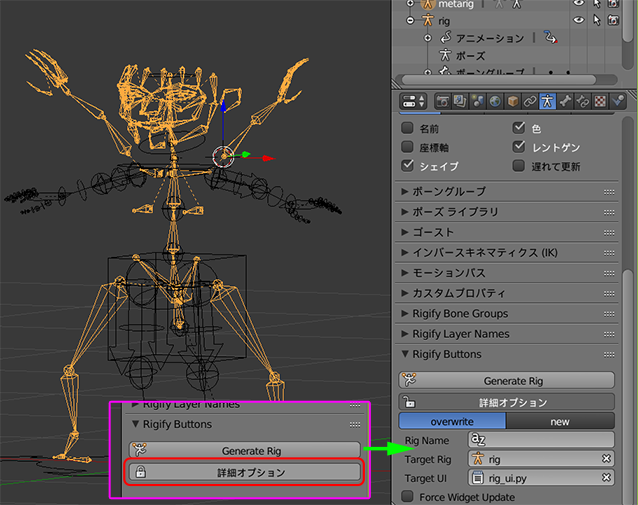
メタリグのGenerateRigボタンの下にある 詳細オプションのボタンを押して
overwriteのタブを選択状態にします

ここでGenerateRigのボタンを押すことで変更したメタリグの配置でリグが上書き生成されます
メッシュとのバインドは維持されるのでスキニングをやり直す必要はありません
画像は上書き操作を押した直後にリグを操作したものですが
ボーンを滅茶苦茶な位置にしたので崩れていますがスキニングは維持されています。

因みに Humanoid互換で出力する場合は リグの再生成後に 4.の親子関係の調整を再度やりなおす必要があります。

6.Unityへの出力

細かい操作に関してはここでは取り上げませんがUnityに持っていく場合の操作を少しだけ

ウエイトの割り当て数を制限

自動ウエイト等でウエイトを設定した場合に 頂点に割り振られているウエイトを見ると 小さな値のウエイトがいくつも割り振られていることがあります
Unityトでは1頂点あたりウエイト4つまでとのことで調整が必要です(ボーンインフルエンス数)
ここで「合計を制限」という機能を使用します
日本語訳からは分かりにくいですが 頂点に設定されているウエイトの数を制限の値より少なくなるように切り捨てる機能です。

ただし 値の小さいものを消去するだけの機能なので ウエイトの合計値を1にする正規化をする必要があります。
図では特定の頂点のウエイトを見るために頂点を選択した状態ですが
ウエイトペイントモードの選択マスクを使用しない状態で
合計を制限 > すべてを正規化 と順に実行するだけでいいかでしょう。

Unityでの読み込み

特別な操作はないですが書き出したものをUnityで確認するまでの処理を
最後にメモ代わりに書いておきます。

UnityにインポートしたアセットのRigのタブで Animatin TypeをHumanoidにしてApply
設定が正常にできていると DEFで名前の始まるボーンが関連付けされます
Configureのボタンを押してボーンの対応付けが埋まっているか確認しておきます。
ボーン親子の対応付けがうまくいっていない場合は 人型に灰色に表示(グレーアウト)される部分ができます
特に鎖骨部分と背骨との親子付けが設定されていないとはっきりエラーが表示され、
指のボーンの親子付けがされてない時はエラー表示がなく手がグレーアウトされます
背骨部分の〇がグレーアウトされている場合は大腿部の親子付けが間違ってる場合があります。

2019年5月13日月曜日

KritaのPythonで指定フォルダと同じ階層のファイルを作ってみた

ペイントソフトのKritaがPythonのスクリプトに対応しているのは以前も話題にしましたが、
改めて調べていて練習代わりに 選択したフォルダの下の階層を再現して画像を読み込むスクリプトを作ったのでメモ

メニューのツール>Scripts>Scripter で出るウィンドウにコピペして再生ボタンを押すことで実行できます。
実行すると表示されるファイル選択ダイアログで フォルダを指定できます

from krita import *
from PyQt5 import QtWidgets

import os
from pathlib import Path

#Shoose directory
work_dir = QtWidgets.QFileDialog.getExistingDirectory()
#filepath as object
work_path = Path( work_dir )

def add_document_to_window():
    """Add new document to Krita
    Arguments:
        width (int): width in pixels
        height (int): height in pixels
        name (str): name of the image (not the filename of the document)
        colorModel (str): color model of document, e.g. "RGBA", "XYZA", "LABA", "CMYKA", "GRAYA", "YCbCrA"
        colorDepth (str): color depth, e.g. "U8", "U16", "F16" or "F32"
        profile (str): The name of an icc profile that is known to Krita
        resolution (float): the resolution in points per inch
        
    Returns:
        the created document
    
    """
    doc = Krita().createDocument(100, 100, "Test", "RGBA", "U8", "", 72.0)
    Application.activeWindow().addView(doc)
    return doc
#make PSDFile
def load_image_as_layer(parent_node,
                        directory_path,
                        extension_list= ["png","JPG","bmp"] ):
        """load imagedata on parent_node"""
        img_list = []
        #get image file
        for ext in extension_list:
            img_list += list( directory_path.glob("*." + ext))
        for file_path in img_list:
            if not file_path.exists():pass
            new_doc = Krita().openDocument(os.fspath(file_path))
            image_node = new_doc.rootNode().childNodes()[0]
            parent_node.addChildNode(image_node.clone(),None)
            new_child = parent_node.childNodes()[-1]
            new_child.setName(file_path.name)
            #fit document to image
            if new_child.bounds().width()> doc.width():
                doc.setWidth(new_child.bounds().width())
            if new_child.bounds().height()> doc.height():
                doc.setHeight(new_child.bounds().height())
            new_doc.close()


def createGroupLayer_recursively(path_object,node):
        """make GroupLayer like directory"""
        dir_list = [x for x in path_object.iterdir() if x.is_dir()]
        doc = Krita().activeDocument()
        Grouplayers = [doc.createGroupLayer(p.name) for p in dir_list]
        node.setChildNodes( reversed(Grouplayers) )
        load_image_as_layer(node,path_object)
        for childNode in Grouplayers:
            #get chld directory
            dir = path_object/childNode.name()
            createGroupLayer_recursively(dir,childNode)
        

doc = add_document_to_window()
doc_root = doc.rootNode()
#Scan the directory structure recursively
createGroupLayer_recursively(work_path,doc_root)
doc.refreshProjection()#ドキュメントの表示状態の更新


Kritaは独自ファイルのほか、PSDでの保存もできるので色々使い道はあるかと思います

2019年3月3日日曜日

グリースペンシルの設定メモ

Blender2.8でグリースペンシルの機能が向上したりと話題にあがることが増えたものの
描き心地に関わる設定の解説を見かけなかったのでメモ代わりに残しておきます
画像は2.79ですが 2.8でもヘッダの「オプション」に同等の設定項目があるようです

グリースペンシルの設定にもいくつかプリセットは用意されていますが、デフォルトの「Basic」ブラシの設定を変えて試しました
一番上がデフォルト設定です
デフォルト設定では曲線を描いた時にかなり角張った線が描かれます

取得したカーソル座標間に線を結ぶことで描画されるのですが
計測してみたところ秒間60ポイント程度の頻度でペンの座標を取得しているようです
ペンタブレットのスキャンレートは秒間120ポイント以上なので、綺麗に描きたいと思うと少々少ないですね。
残念ながら今のバージョンではスキャンレートをあげる設定はないようですので、後処理で綺麗にする設定をみていきます

まずは細分化の数値を上げたものが2番目ですが、見た目に大きな変化がないようです


拡大してみると細分化は取得したカーソル位置の座標の中間にポイントを追加するだけのようです

そこでスムーズの数値を最大の2にしたのが3番目ですが少ししか変化してませんね
さらに「反復」の数値をあげてみると・・・なめらかになってます。
改めて画像を並べて見ます

反復は線をなめらかにするために頂点を動かす計算をどれだけ繰り返すかの設定で
スムーズや反復を大きくすると、なめらかな曲線になるものの 元のストロークから外れることになります。

細分化が足りない状態で"反復"を大きくしてしまうと描いたつもりの部分も丸められて消えてしまうということになります
説明しづらいのですが、赤線の位置に描こうと思ったのに黒線のように縮こまって描画されたりしてしまいます。

作業環境やそれぞれの好みにもよるでしょうが
自分の環境では スムーズ0.3 反復2 細分化2が適度な補正がかかるように感じました

最後に他の設定についての覚え書きも残しておきます